
Clearing Your WordPress Admin Dashboard: How to Remove Plugin Ads

This kind of change usually falls between plugin-level customisation, custom WordPress development and practical ongoing support for making the admin experience cleaner and easier to manage.
What are plugin ads and admin notices?
Many WordPress plugins add messages into the dashboard. These can include upgrade prompts, promotional banners, recommendations for other plugins, update reminders or system notices. Some are useful, but too many can make the admin area noisy and harder to work in.
How to hide these ads and notices
One simple approach is to hide the notices with a small snippet added to your theme’s functions.php file.
- Log in to your WordPress admin dashboard.
- Go to Appearance > Theme Editor.
- Open the functions.php file for your active theme.
- Add the following code at the end of the file:
<?php
function remove_admin_notices() {
    echo '<style>
        .notice, .updated, .error, .is-dismissible, .update-nag {
            display: none;
        }
    </style>';
}
add_action('admin_head', 'remove_admin_notices');
?>- Save the file by clicking Update File.
This will hide common admin notices and promotional messages from view. It is a lightweight way to create a cleaner dashboard without needing a full plugin for the task.
A word of caution
This is a blanket approach. It hides all notices using the same selectors, not just promotional ones. That means it may also hide useful information such as:
- Update notifications
- Error messages
- Important plugin or system warnings
If you only want to hide certain notices, a more selective approach is safer. That usually means identifying the specific class or ID used by the unwanted notice and targeting that instead of removing everything at once.
This is where custom WordPress functionality can be useful. A more controlled admin cleanup often gives you the benefit of a cleaner dashboard without hiding messages that actually matter.
What this method does not do
This does not remove the notices from the plugin itself. It only hides them visually in the admin interface. If you want to disable them completely, you may need to:
- Change plugin settings
- Use a more targeted code approach
- Contact the plugin developer
- Replace the plugin if it is too intrusive
When to use this approach
This method is most useful when:
- You already know the notices are non-essential
- The dashboard has become too distracting
- You want a quick temporary cleanup
- You are comfortable editing theme files safely
As with most WordPress admin tweaks, it is worth backing up the site first and testing changes carefully. If the dashboard is part of an ongoing workflow for a team or client, ongoing support can help make sure those changes stay safe and maintainable.
Conclusion
A cleaner WordPress dashboard can make day-to-day work more focused and less frustrating. Hiding plugin ads and notices is a simple way to reduce visual noise, but it should be used carefully so you do not suppress information that is genuinely important.
Need help cleaning up or customising the WordPress admin experience?
Get in touch and I can help you make WordPress cleaner, faster and easier to manage without creating new risks. The most relevant starting points are usually plugin development, custom WordPress development and ongoing support.
Keep exploring
Recent work
All case studies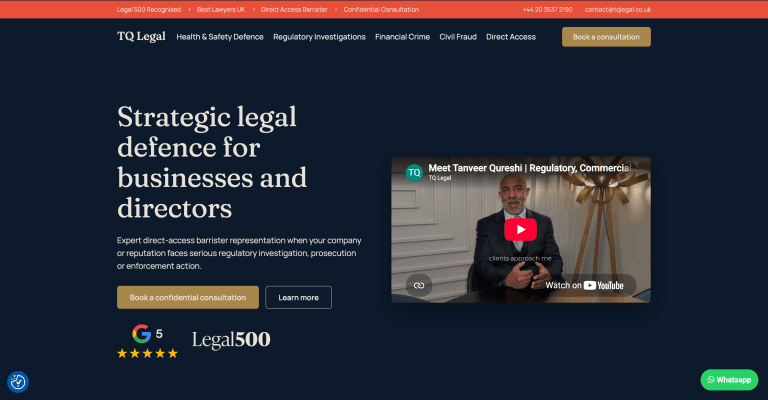
TQ Legal: Rebranding a Live Barrister’s Website Without Breaking It
A complete rebrand of a live barrister’s WordPress site, shipped as an additive component layer alongside the legacy theme so nothing already live ever broke. A token-driven design system, a fully editable ACF page builder and a measurable enquiry journey, all with a zero-downtime rollout.
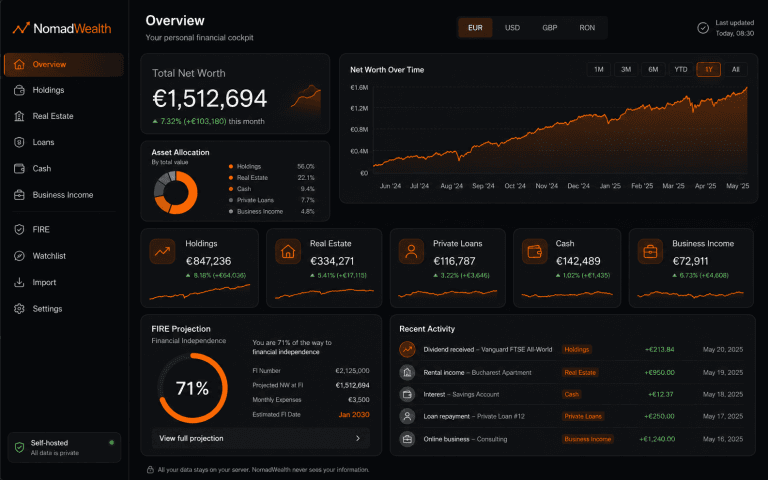
NomadWealth: Self-Hosted Net-Worth App
Turning a personal finance dashboard into a self-hostable product: holdings, real estate, loans and cash in one private cockpit, deployed to the buyer’s own Vercel so the vendor never sees their data.
Guided Experience Platform
A mobile-first WordPress and PWA platform for self-guided in-venue experiences, designed to feel app-like, flexible across brands and easy to manage.
Services
All servicesReading
All articlesHow to Turn Your WordPress Website Into a Progressive Web App
How a Progressive Web App can turn a WordPress website into a faster, app-like experience with home screen access, alert
Fixing YouTube Link Conversion in WordPress & BuddyPress
A lightweight WordPress customisation that automatically converts YouTube links into embedded iframes across posts, bbPr
20 mistakes clients make using WordPress
Many WordPress websites underperform because of avoidable issues like poor hosting, missed updates, weak SEO structure a